What is the maximum file size I can upload to S3?
An S3 object can be up to 50 TB, but the limit you hit depends on the path: 5 GB for a single PUT, 160 GB through the console, and multipart upload for everything larger. Here are the four ceilings and which tool to use at each size.
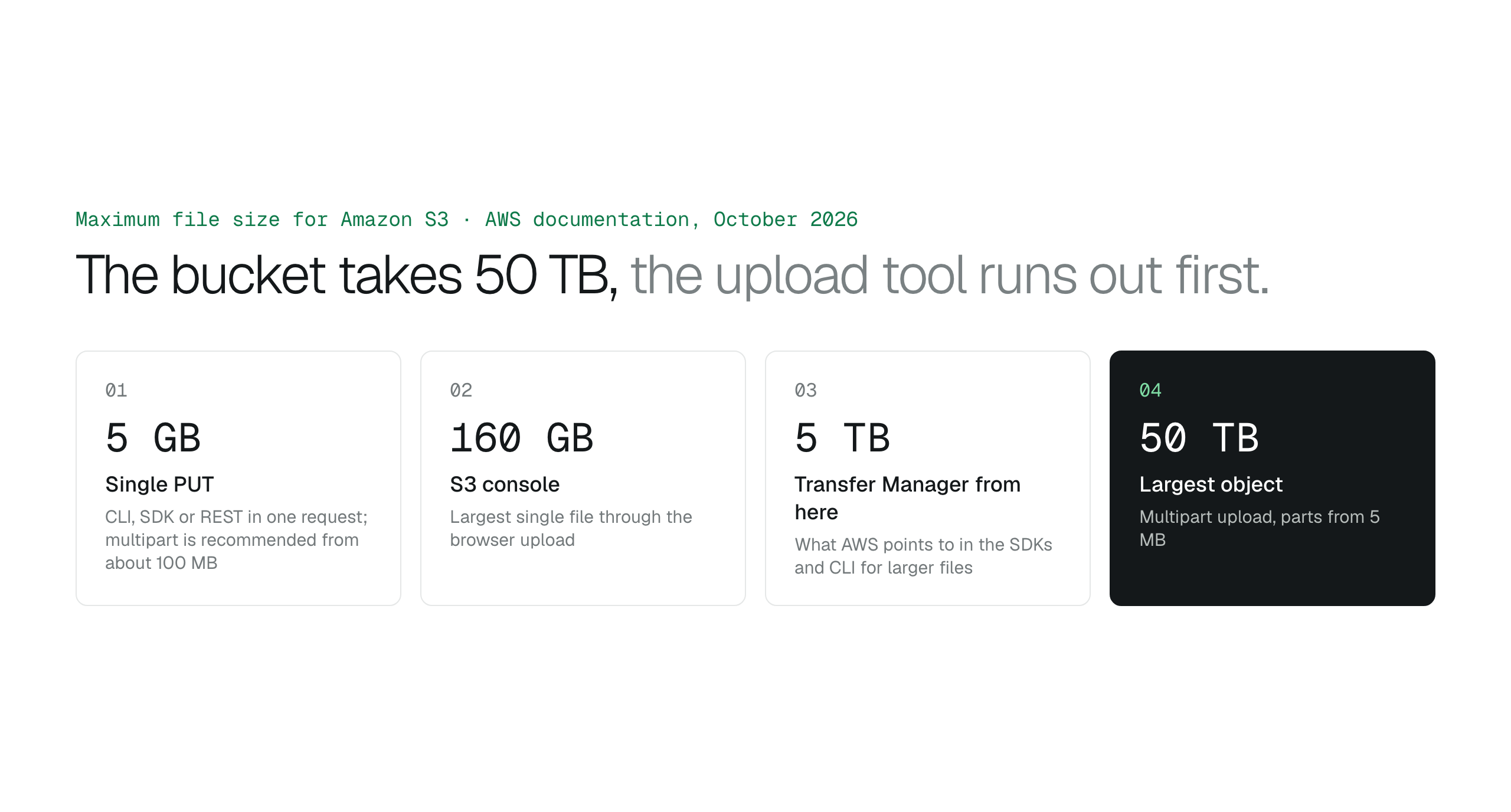
S3 stores objects up to 50 TB, but the upload path sets the practical limit: 5 GB for a single PUT, 160 GB through the console, and multipart upload for everything else, with the Transfer Manager for files over 5 TB. Use multipart from about 100 MB, expect a new version rather than an overwrite on versioned buckets, and expire abandoned parts with a lifecycle rule.
The largest object Amazon S3 stores is 50 TB, and the limit you actually meet depends on how you upload. A single PUT request carries at most 5 GB, the S3 console uploads a single file of up to 160 GB, and multipart upload handles anything from 5 MB up to the 50 TB ceiling.
In practice, almost nobody reaches the object limit; they reach the tool limit. The sections below take the four ceilings in order, from the AWS documentation as read on October 27, 2026, and say which method to use at each size.
The four ceilings
AWS recommends switching to multipart upload once an object reaches about 100 MB, well before any limit forces it, because parts upload in parallel and a failed part can be retried without starting over. The AWS CLI and SDKs do this automatically; the console does its own multipart behind the scenes up to its 160 GB cap.
| Method | Largest single file | Notes |
|---|---|---|
| Single PUT (CLI, SDK, REST) | 5 GB | One request; retry means re-sending the whole file |
| S3 console | 160 GB | Drag and drop in the browser; the console splits the upload itself |
| Multipart upload (CLI, SDK, REST) | 50 TB | Parts from 5 MB; recommended from about 100 MB |
| Transfer Manager in the SDKs or CLI | 50 TB | What AWS points to for files over 5 TB |
Which tool at which size
Up to a few hundred megabytes, anything works. Between that and 160 GB the console still works, but a browser tab is a fragile place for a long transfer, so the CLI's aws s3 cp is the usual choice; the upload methods compared covers the permissions each one needs. Beyond 160 GB the console refuses, and beyond 5 TB AWS says to use the S3 Transfer Manager in the SDKs or the CLI.
# The CLI switches to multipart on its own for large files.
aws s3 cp ./footage/interview-raw.mov s3://amzn-s3-demo-bucket/footage/- Under 100 MB: any method.
- 100 MB to 5 GB: multipart is recommended, and the CLI and SDKs do it for you.
- 5 GB to 160 GB: multipart only; the console still works.
- Over 160 GB: CLI, SDK or REST only.
- Over 5 TB: Transfer Manager.
Two things that happen on every upload
Whatever the size, a new object is encrypted with SSE-S3 by default at no cost, so an upload never lands unencrypted. And in a bucket with versioning on, uploading a file with a key that already exists creates a new version rather than replacing the old one, so a repeated upload of a large file doubles its storage until a lifecycle rule expires the old version. Does S3 versioning cost money? covers that bill.
Multipart uploads that never complete also keep their parts, and the parts are billed. A lifecycle rule with AbortIncompleteMultipartUpload clears them after a set number of days.
Let the team upload without the CLI
On the Ultra plan, BucketDesk operators upload straight to a folder in a connected bucket from the browser, and the upload runs as a multipart upload under the scoped IAM role you deployed with CloudFormation, so nobody needs access keys or the CLI installed. Every upload lands in the Activity log with who sent it.
Plans and pricingUploads on the features page
Ultra is $350 a month with ten operators included and a one-month free trial. Browsing and previews are free on Minimum for one bucket.
Primary sources
Discussion
0 comments · open to guests · moderatedLiked this? Get the next article by email. No schedule, no digest, one click to leave.