Everyone in the workspace
User guide
BucketDesk shows the files in your company’s Amazon S3 buckets as folders you can open in a browser. You do not need an AWS login. What you can do depends on your role in the workspace and on what your admin has switched on for each bucket.
Some features are marked with a plan. Where your plan does not include one, it usually comes with a monthly allowance: a set number of free uses, shown next to the button, that starts again on the 1st.
Browse and search#
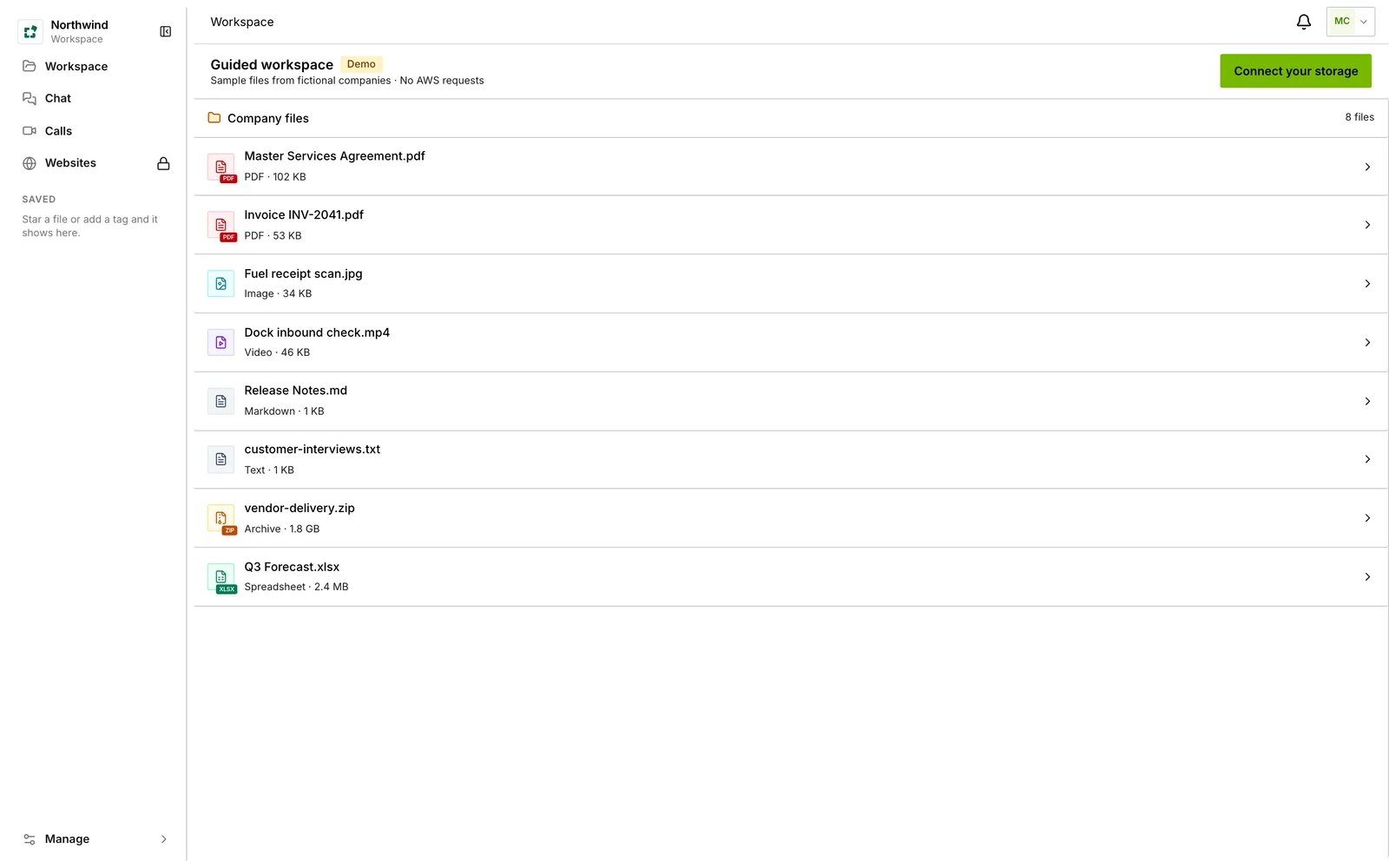
- Files in the sidebar opens the workspace. Each connected bucket, or folder of a bucket, is a place you can open.
- Move through folders with the breadcrumb at the top, in list or grid view, sorted by date, name or size.
- Press
Cmd KorCtrl Kto search. Search looks at file names in the folder you have open, matches any part of a name, and is not case sensitive. Narrow it to folders, images, documents, archives or cold storage. It does not search inside files. - Save files you return to often and tag files that belong together, then filter by Saved only or by tag.
- With a file open, the left and right arrow keys move to the next file and Escape closes it.
TipTo find something by what it says rather than what it is called, open the file or its folder and ask a question with document chat.
Open and preview files#
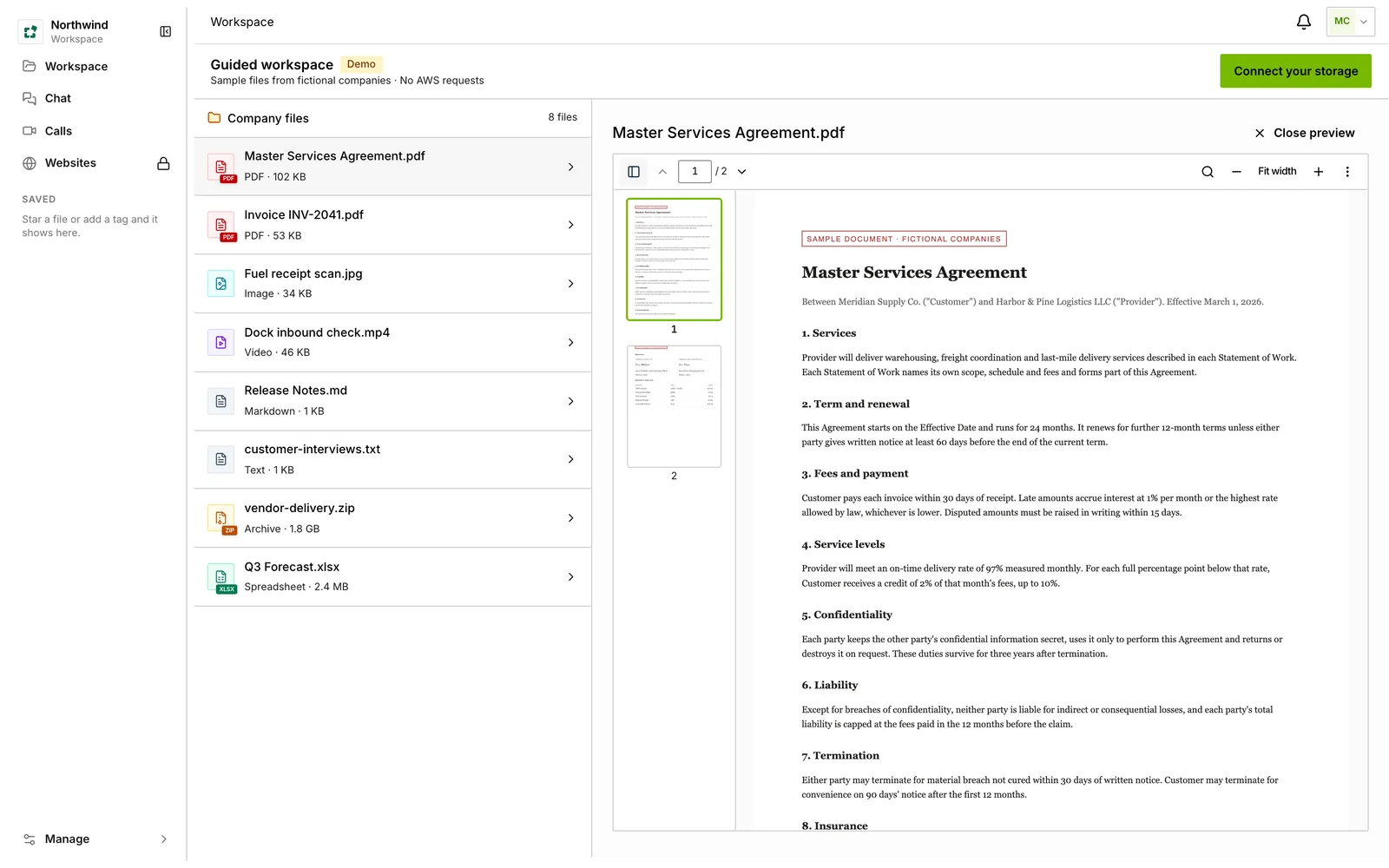
Click a file to open it in the browser. Nothing is downloaded to your computer unless you choose Download.
| Kind | Formats | Plan |
|---|---|---|
| With page thumbnails, find, zoom, rotate and print | Every plan | |
| Images | JPG, PNG, GIF, WebP, AVIF, BMP, SVG, and HEIC and HEIF photos, with a gallery, zoom and rotate | Every plan |
| Text and code | TXT, Markdown, HTML (shown as source), CSV, JSON, XML, YAML, logs and common source files, up to 1 MB | Every plan |
| Office | Word, Excel and PowerPoint, OpenDocument, Pages, Numbers and Keynote, RTF, EPUB and Visio | Standard and Ultra; 30 a month on Minimum |
| Video and audio | MP4, WebM and MOV; MP3, M4A and FLAC, streamed from your bucket | Standard and Ultra; 30 a month on Minimum |
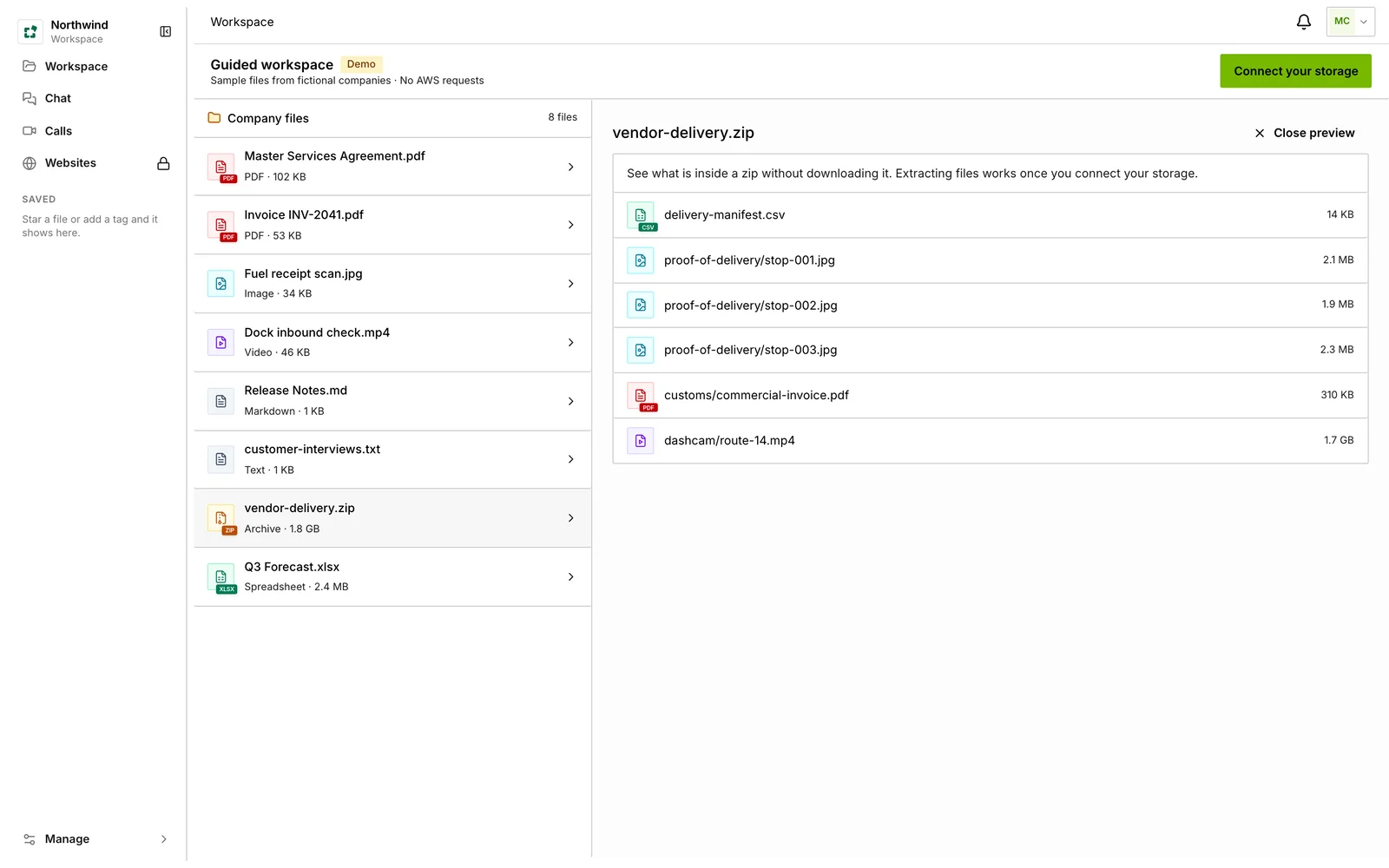
| Archives | See what is inside a ZIP without downloading it | Standard and Ultra; 9 a month on Minimum |
Files in S3 Glacier or Deep Archive cannot be opened until they are restored. See Bring files back from cold storage.
Share files#
A share link lets one person outside the workspace open a file or folder without an account.
- Select the file or folder and choose Share.
- Enter the recipient’s email address. Each link goes to one address.
- Choose when the link expires: 1, 7, 14 or 30 days. Every link has an expiry.
- For a folder, choose a live link, which shows the folder as it is now, or a snapshot, which shows it as it was when you sent it. A single file is always shared as it was sent.
- Decide whether the recipient may download the original and whether they may comment.
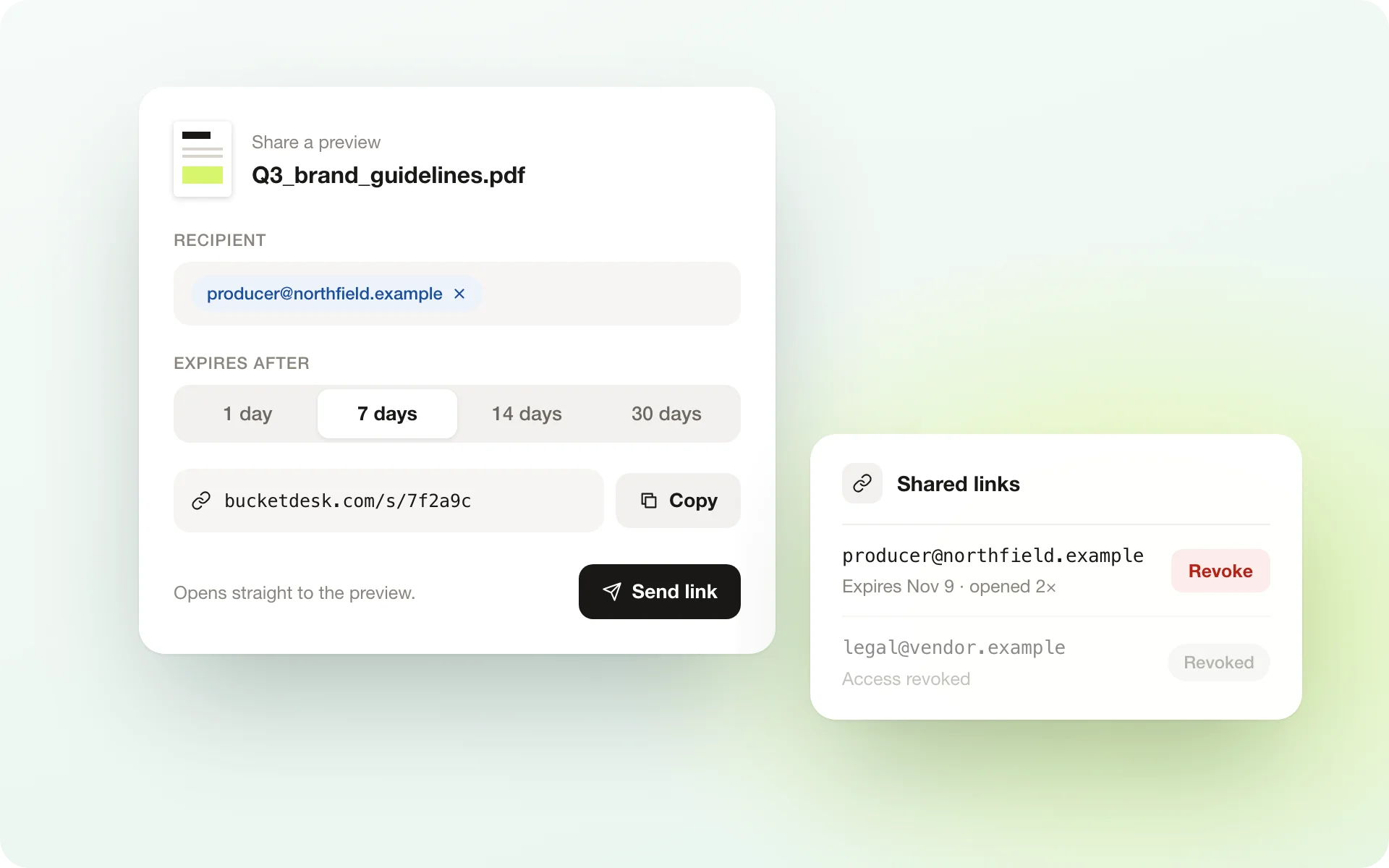
- The recipient needs no account. They confirm their address with a six-digit code sent by email before anything is shown. There is no separate password option.
- Every open is recorded. The Shares page shows each link with its access log.
- On the Shares page you can revoke a link, restore access, extend the expiry, or replace the link with a new one.
- A delivery pack sends every file with a tag, or your saved files, as one link, with a checklist of what the recipient has opened.
Operators, admins and owners can share; viewers cannot. If the person who sent a link is removed from the workspace, the link stops working.
PlanStandard and Ultra. Minimum includes 9 links a month.
Comment on files#
- Start a thread on any file, reply, react, @mention a teammate and resolve the thread when it is done.
- A comment can point at a page of a PDF, a spot on an image, or a moment in a video or audio file.
- When you share a file you can allow the recipient to comment. They see only their own threads.
- Comments are stored in your own bucket, in BucketDesk’s hidden
.bucketdesk/folder.
Ask questions about a document#
Open a file and choose Ask AI to ask a question about it, or about the folder it sits in. The answer cites the page it came from. It works on PDF, Word, Excel, CSV, text and code files up to 10 MB, and not on images or PowerPoint files.
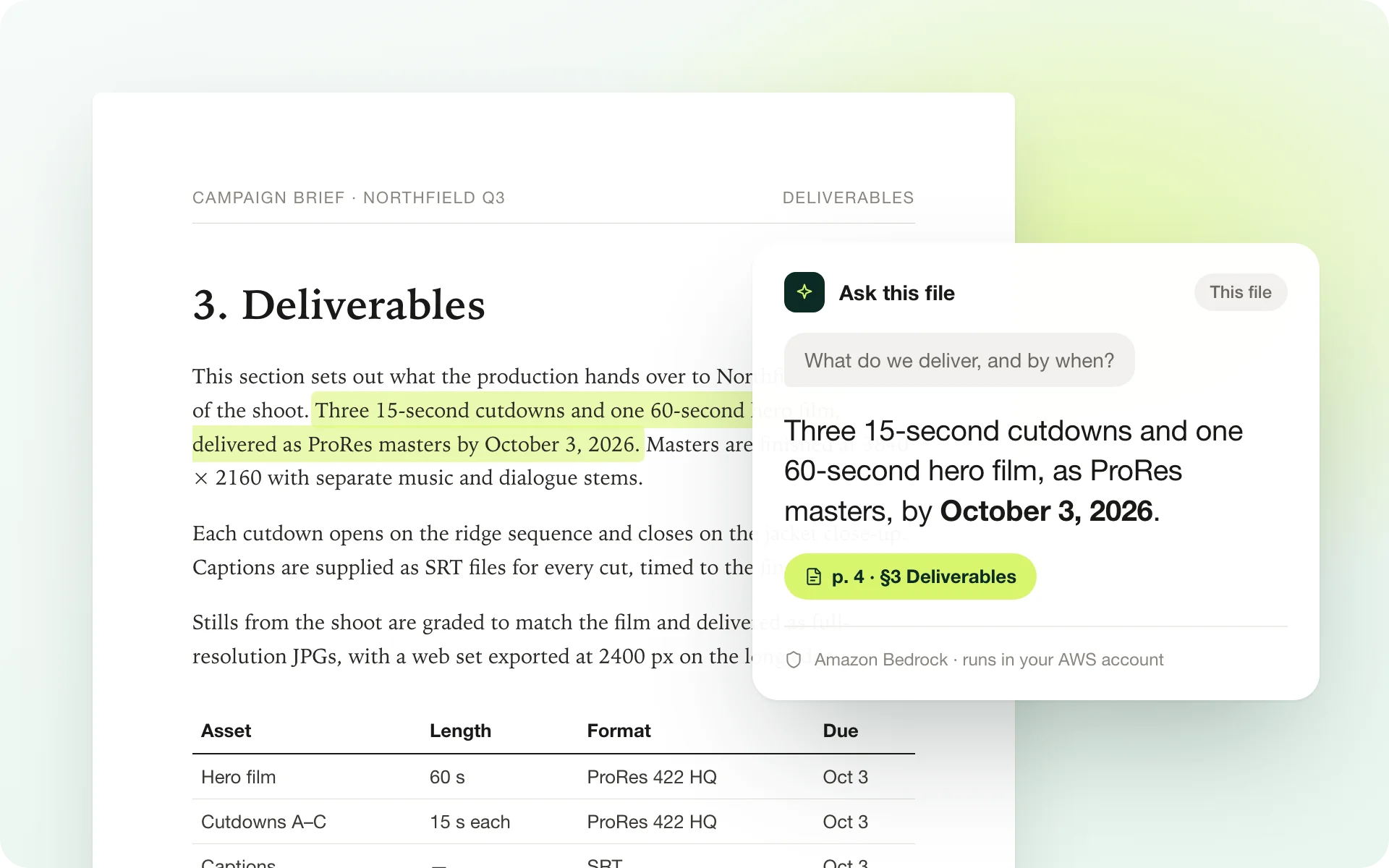
- Answers come from Amazon Bedrock in your company’s own AWS account, not from a BucketDesk model.
- Only the files you ask about are read. BucketDesk does not index the bucket.
- A chat you choose to keep is saved, encrypted, for 30 days after you last used it. Other chats are cleared after about an hour.
Kept chats are listed on the Chat page. Document chat is for operators, admins and owners, and your admin has to switch it on for the bucket first.
PlanUltra. Minimum includes 15 questions a month and Standard 25.
Upload, move and rename#
- Upload files or whole folders by dragging them onto the folder or choosing Upload to this folder. Files go from your browser straight into the bucket, in parts, up to 5 TB each. If a name is already taken, you are asked before anything is replaced.
- Create folders with New folder.
- Rename a file or folder in place. A folder rename runs in the background. Share links and tags stay with the old name.
- Move files within a bucket with Move, choosing to merge, replace or skip when names collide. A finished move can be undone.
- Edit Word, Excel and PowerPoint files in the browser. One person edits at a time and changes save back to the bucket. If the original changed in the meantime, your edits go to a copy.
- Download a folder as a zip. It is prepared as a job and collected from the Jobs page.
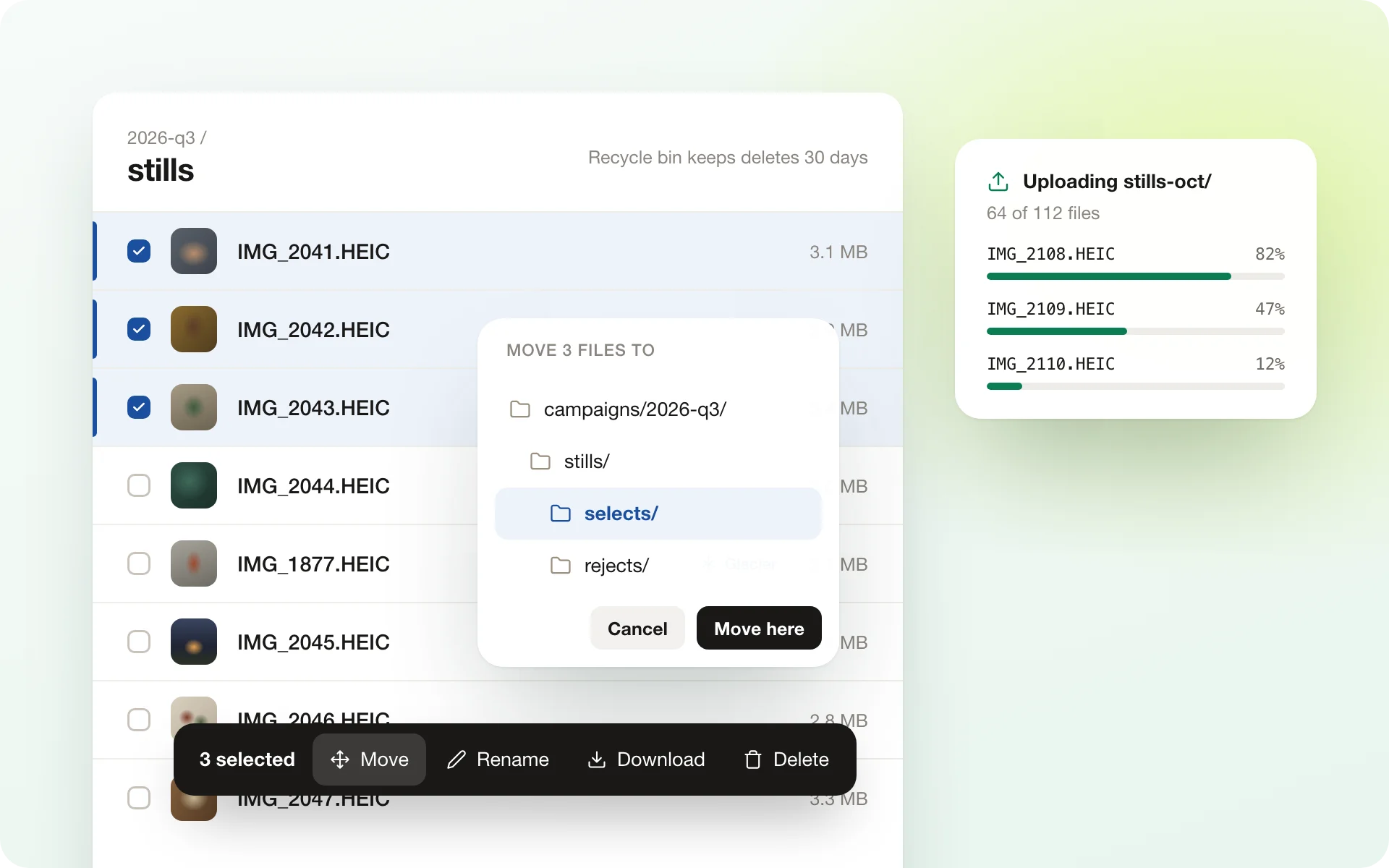
These work only on buckets where your admin has switched uploads on, and only for operators, admins and owners.
CarefulBucketDesk does not scan uploaded files for malware.
PlanUltra. Minimum includes 30 uploads and 9 Office edits a month, and Standard 50 and 15. Copying or moving between buckets is Ultra only.
Delete and recover#
With the recycle bin, deleted files and folders wait 30 days inside your bucket before they are removed. The Recycle bin page shows what was deleted, by whom and when. From there you can restore an item to its original folder, delete it forever, or empty the bin. Viewers do not see the bin.
| Plan | Deletes | Recycle bin |
|---|---|---|
| Minimum | 30 a month | Not included |
| Standard | 50 a month | Add-on |
| Ultra | Included | Included |
CarefulFiles in S3 Glacier and Deep Archive skip the recycle bin: deleting one removes it at once.
Bring files back from cold storage#
Files in S3 Glacier and Deep Archive have to be restored before they can be opened. You can restore one file, a selection, or a whole folder.
- Select what you need and choose to restore it.
- Choose Bulk or Standard retrieval, and how long the restored copy stays available, from 1 to 7 days.
- BucketDesk shows what AWS will charge. AWS bills this to your company’s account. Tick the box to approve the cost and confirm.
The request appears on the Jobs page. One folder request can cover up to 100 GB.
You get a notice 12 hours before the restored copy returns to cold storage.
PlanUltra. Minimum includes 3 restores a month and Standard 5.
Unzip and convert#
Unzip into the bucket
Open a zip to see its contents, then extract it into a new folder next to the archive. Before it starts you see the destination, the number of files, how much it will expand, any name collisions and the estimated cost, and you choose how long the extracted files are kept: until you delete them, or 7, 30 or 90 days, or a year. Extraction runs as a job in your company’s AWS account, on ZIP files up to 50 GB. Password-protected archives are not supported.
Convert a folder
Convert, under Tools, turns a folder of images, PDFs or Word, Excel and PowerPoint files into JPG, PNG, PDF or Markdown in one job. The file count, time and AWS cost are shown first. Results go to a converted folder next to the originals, and the originals are never changed.
PlanUnzip: Standard and Ultra, with 3 extractions a month on Minimum. Convert: Ultra, with 1 job a month on Minimum and 5 on Standard.
Send a PDF for signature#
- Open a PDF and place the fields: signature, initials, date, name, text and checkbox.
- Add up to 10 signers, and choose whether they sign in order or in any order.
- Choose how long the links last, from 1 to 30 days, and send.
Each signer gets their own emailed link and code and signs in the browser without an account. When everyone has signed, BucketDesk seals the PDF with a certificate page recording who signed and when, and emails every signer a link to it. The sealed copy is saved next to the original, or in the hidden .bucketdesk/ folder when the connection cannot write there. Open requests can be voided from the Shares page.
PlanUltra. Minimum includes 3 requests a month and Standard 5.
Video calls#
Choose Start a call on the Calls page to meet with workspace members and guests, who join from an emailed link. Calls have chat and screen sharing. A recorded call is saved to your bucket, and afterwards a transcript and a summary with decisions, open questions and action items are made in your company’s own AWS account.
PlanUltra. Calls need a bucket with uploads and document chat both switched on.
Apps, language and notifications#
- BucketDesk Sync for Mac shows the workspace’s folders in Finder and keeps chosen Mac folders in step with a bucket, both ways. It needs macOS 13 or later on Apple silicon, and is on Ultra. Get the apps.
- BucketDesk Sync for Windows does the same in File Explorer: the folders sit in the sidebar and download when you open a file, and chosen PC folders stay in step with a bucket. It needs Windows 10 (version 2004 or later) or 11, 64-bit, and is on Ultra.
- The app is available in English and Spanish. Choose yours under Settings → Profile.
- Choose which events notify you, in the app and by email, under Settings → Notifications.
- The Jobs page lists running and finished work, such as extractions, restores and zips. A running job can be cancelled there.
Something wrong or missing on this page? Email info@bucketdesk.com. Last updated November 12, 2026.