Platform teams
Upgrading
This page is for self-hosted installs. On the hosted service at app.bucketdesk.com there is nothing to upgrade: releases are applied for you, and the release notes say what changed.
How releases work#
- Every release, including security fixes, is published to the public image and the install kit on the day it ships.
- Updating does not need a licence. An install whose licence has lapsed can still update.
- Each kit pins one release. The kit’s
compose.yamlnames the image version, a tag made of the release date and a build ID, such as20261112-442fdaa9. - Release notes are at app.bucketdesk.com/release-notes.
Before you upgrade#
- Read the release notes for the versions between yours and the new one.
- Take a snapshot or backup of the server, including its Docker volumes. The database lives on the server, and database changes run when the new version starts.
- Keep a copy of
.env,aws/andcerts/. The kit does not contain them, so unzipping a new kit does not overwrite them. - Pick a quiet time. The app is briefly unavailable while the containers restart.
Upgrade#
- Download the new kit.
- Unzip it over the install folder.
- Pull the new images and restart:
docker compose pull && docker compose up -dDatabase changes run automatically when the app starts.
On the AWS install
Open a shell with Systems Manager Session Manager. The install folder is /opt/bucketdesk, and the stack is started with two Compose files, so name both:
docker compose -f compose.yaml -f ec2/compose.ec2.yaml pull
docker compose -f compose.yaml -f ec2/compose.ec2.yaml up -dNoteIf you turned office previews on for an AWS install, you start it with compose.yaml alone, so use the plain command above instead.
After an upgrade#
Sign in and open a file. Then check whether the release notes ask for either of these.
Update a connection’s stack
When a release changes the permissions a connection needs, the connection shows a message that the deployed stack is from another release. Open the connection, follow its update link, and submit the stack update in AWS. Until then, features that depend on the new permissions fail on that connection.
Update the AWS access stack
When a release changes aws-access.yaml, update that stack with the new template from the kit, then run its CredentialsFileCommand output again in the install folder to rewrite the credentials files.
If something goes wrong#
- Look at the newest files in
logs/in the install folder, and atdocker compose psto see which container is not running. - Because database changes run on start, going back to an older release means restoring the snapshot you took before upgrading, not only starting the old images.
- Email info@bucketdesk.com with the most recent log files and the version you upgraded from and to.
Renewing a licence#
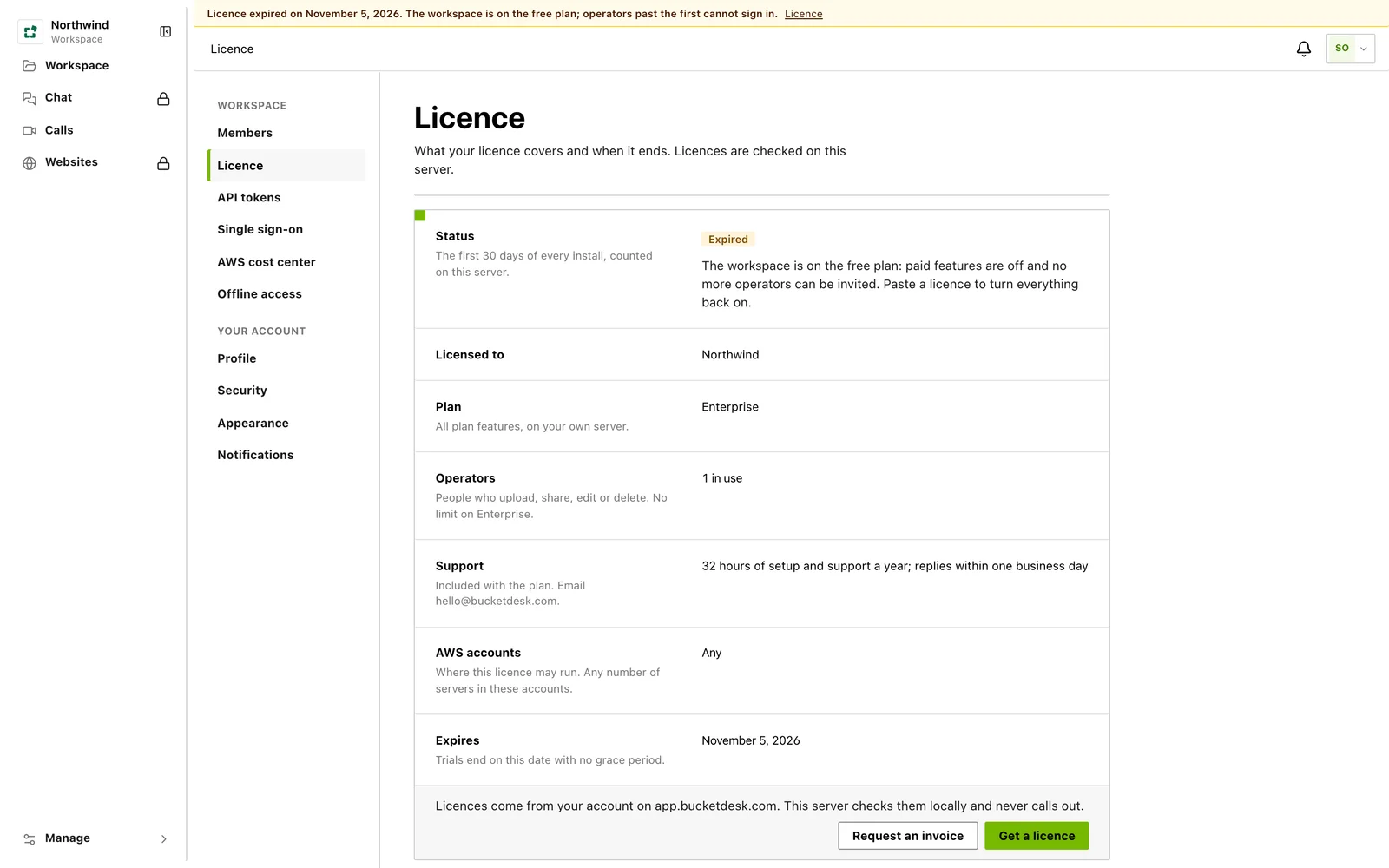
A licence renewal is not an upgrade and needs no restart. The owner pastes the renewed key under Settings → Licence and it applies at once. After a paid licence expires everything keeps working for 30 days, then the install falls back to the free plan until a renewed key is pasted.
Something wrong or missing on this page? Email info@bucketdesk.com. Last updated November 12, 2026.