An S3 file browser for your whole team.
Browse, preview, upload and share files in Amazon S3 through a shared workspace in your browser. Your files stay in your own AWS account.
One month of Ultra free. No card needed to start.
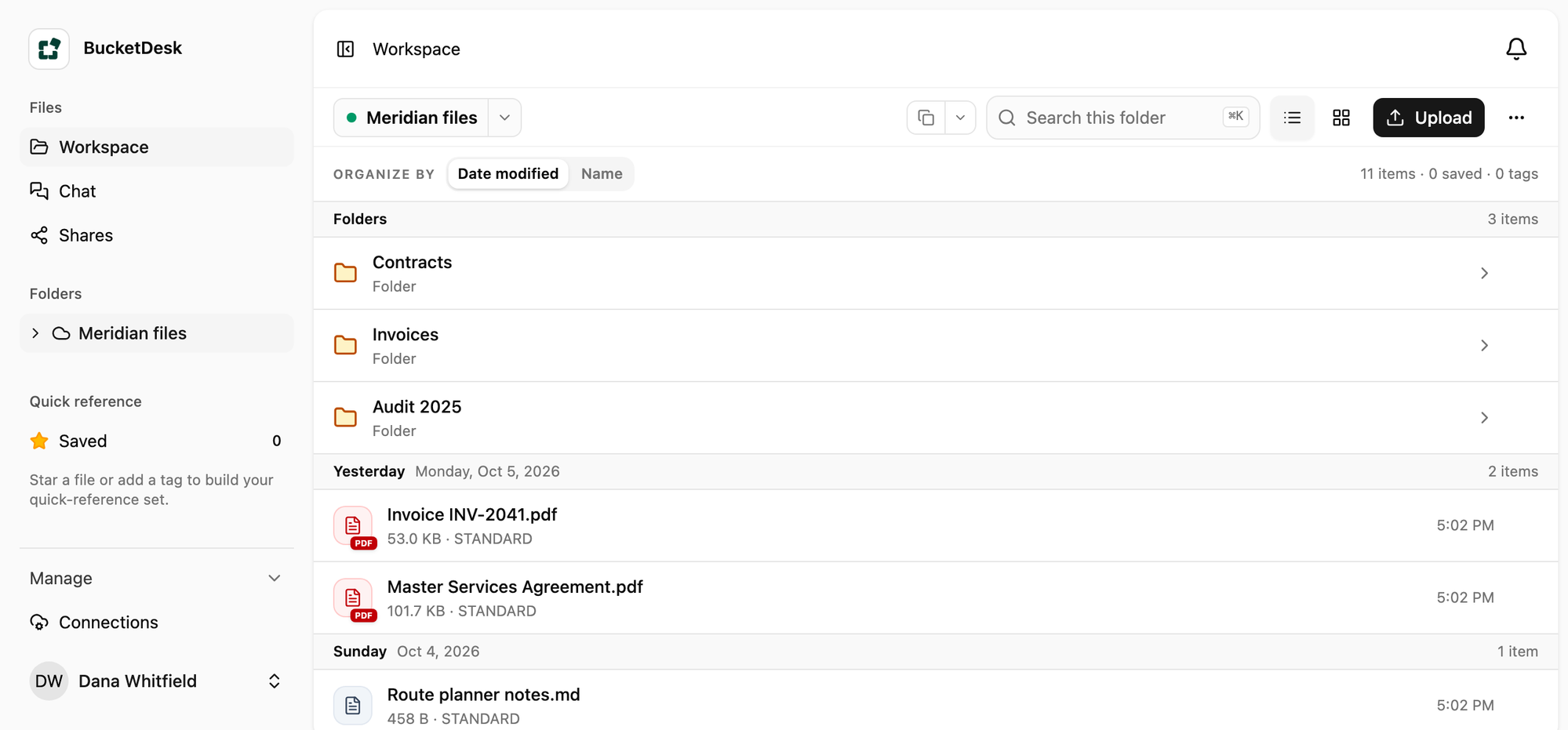
Give your team a place to work with S3 files.
Your files are in S3. Your team should be able to work with them without the AWS Console or a desktop client on every computer. BucketDesk gives them a browser interface for everyday file tasks, from finding a document to previewing it and sharing a link.
- Browse and upload
- Navigate your buckets and folders, find the files you need, and upload files through your browser.
- Preview before downloading
- Open supported files in a preview so you can check their contents before downloading or sharing them.
- Share files with a link
- Send a link to an S3 file when someone needs access to it.
A shared workspace instead of another desktop install.
A desktop S3 client is useful when you want to work with cloud storage from an application on your computer. Some clients also mount drives, sync folders or support several storage protocols. BucketDesk is built for a different workflow: a team working with S3 files through a shared browser interface. Each teammate opens it in a browser, on Mac or Windows.
If your main need is a mounted drive or desktop sync, compare tools built for that. Replacing a specific app? See S3 Browser, Cyberduck and CloudBerry Explorer next to BucketDesk.
- BucketDesk
- A shared browser interface for a team working with S3 files
- A desktop S3 client
- An installed application for an individual S3 workflow
- A client with drive mounting
- Cloud storage mounted as a drive on your computer
- The AWS Console
- AWS infrastructure configuration and administration
Keep your files in your AWS account.
Connect your AWS account and work with the files in your S3 buckets. BucketDesk provides the interface; your AWS account remains the home for your files. Review the permissions BucketDesk requests and how your team reaches files before you start.
- 1. Connect your AWS account
- Review and create an IAM role through CloudFormation. File access starts read-only; uploads require an optional capability. BucketDesk also writes its own metadata in a hidden .bucketdesk/ folder.
- 2. Open your files in the browser
- Browse and preview supported formats. Enable uploads when needed. Some previews pass through BucketDesk servers; open Office documents are held by the document server while in use.
- 3. Bring your team into the workflow
- Give teammates a shared place to work with S3 files and share file links when needed.
Questions about using BucketDesk with S3.
- Is BucketDesk a desktop S3 client?
- BucketDesk is a browser-based S3 workspace. You open it in your web browser instead of installing a desktop file client.
- Does BucketDesk move my files out of AWS?
- Your files remain stored in your own AWS account. Some previews pass through BucketDesk servers, and the document server holds Office files while they are open.
- Does it work on Mac and Windows?
- Yes. You open the workspace in your browser on either platform.
- Is BucketDesk the same product as S3 Browser?
- BucketDesk is a separate product, built for a shared, browser-based workflow for teams.
- Should I use BucketDesk or the AWS Console?
- Use BucketDesk for everyday team file tasks such as browsing, previewing, uploading and sharing. Use the AWS Console to administer your AWS infrastructure and S3 configuration.
- What AWS permissions does BucketDesk need?
- The AWS access page lists every permission the connection role uses. Review it before you set up your workspace.
Make S3 files easier to work with together.
Give your team a browser-based workspace for the files already in your AWS account.
One month of Ultra free. No card needed to start.