Compare · Amazon WorkDocs
An Amazon WorkDocs alternative for teams working in S3.
Amazon WorkDocs shut down on April 25, 2025, and its export tool left each person’s files as a zip in an S3 bucket in your AWS account. BucketDesk Workspace connects to that bucket through a role you create, unzips the archives into folders, and gives your team one place in the browser to open, comment on and share the files. They stay in your bucket.
One month of Ultra free. No card needed to start.
Choose BucketDesk Workspace if your team shares the bucket.
- Your WorkDocs export is sitting in an S3 bucket
- Teammates sign in by email, with no AWS keys to hand out
- Office files open in the browser and shared links expire, as they did in WorkDocs
WorkDocs no longer runs. If your company has already moved into Microsoft 365 and the archive is small, SharePoint can be the simpler home.
| Task | BucketDesk Workspace | Amazon WorkDocs |
|---|---|---|
| Status | Available, on the bucket the export wrote to | Shut down April 25, 2025 |
| Where files live | Your S3 bucket, priced by S3 | WorkDocs storage, 1 TB per user by default |
| The export | Unzip each person’s archive into folders in the browser | One zip per user, with comments and permissions in a CSV |
| Sign in | Invite people by email | An AWS Directory Service directory |
| Open a PowerPoint | Preview in the browser; edit on Ultra | Office Online or the WorkDocs Companion app |
| Send a client one file | Expiring link to a named email, every open logged | Link with an expiry date and password |
| Comments | Threads anchored to a page or clause, with @mentions | Threaded comments with @mentions |
| Find a file | By name in the open folder; ask documents questions on Ultra | Search inside content, comments and labels |
| On your computer | Mac app in Finder and Windows app in File Explorer, on Ultra | WorkDocs Drive for Windows and Mac |
Weighing a move into Microsoft 365 instead? See Amazon WorkDocs vs SharePoint after the shutdown.
What teams look for
What a WorkDocs replacement has to do.
The reasons teams pick OneDrive, SharePoint, Google Drive, Dropbox or Box, and how BucketDesk handles each, including where it falls short.
- Edit Office files together
Open Word, Excel and PowerPoint files in the browser on Standard, and edit and save them back to the bucket on Ultra. If your team co-authors the same document live all day, Microsoft 365 or Google Workspace does that better.
- Work offline without filling the disk
BucketDesk for Mac and Windows shows your buckets in Finder or File Explorer as placeholders that download when opened, and on a Mac you can keep a folder offline. It comes with Ultra.
- Earlier versions and undo
Turn on S3 Versioning and the bucket keeps every earlier copy of a file. On Ultra, the recycle bin brings back a deleted file for 30 days.
- Search that finds things
Search by file name in the folder you have open, and on Ultra ask a document a question and get an answer that cites the page. Full-text search across every file is not there yet.
- Sharing with access levels
Give each person a role: Viewer, Operator or Admin. Viewers are free on Standard. Outside people get a link that expires, verify with a code sent to their email, and every open is logged.
- Security and compliance
Files stay in your own S3 bucket and AWS account, under your encryption and retention settings. BucketDesk reaches them through an IAM role you can delete, and CloudTrail records each session. BucketDesk does not hold a SOC 2 report yet.
- Workflows and integrations
Comments with @mentions, e-signatures, video calls recorded to the bucket, file conversion, and Claude and ChatGPT connected to your buckets on Ultra. Single sign-on and approval chains are quoted on request. There is no Slack or Salesforce app.
- A migration that keeps folders and permissions
Nothing has to move: connect the bucket the export wrote to and unzip each person’s archive in place. WorkDocs permissions and comments stay in the export’s CSV, so set up access again with roles.
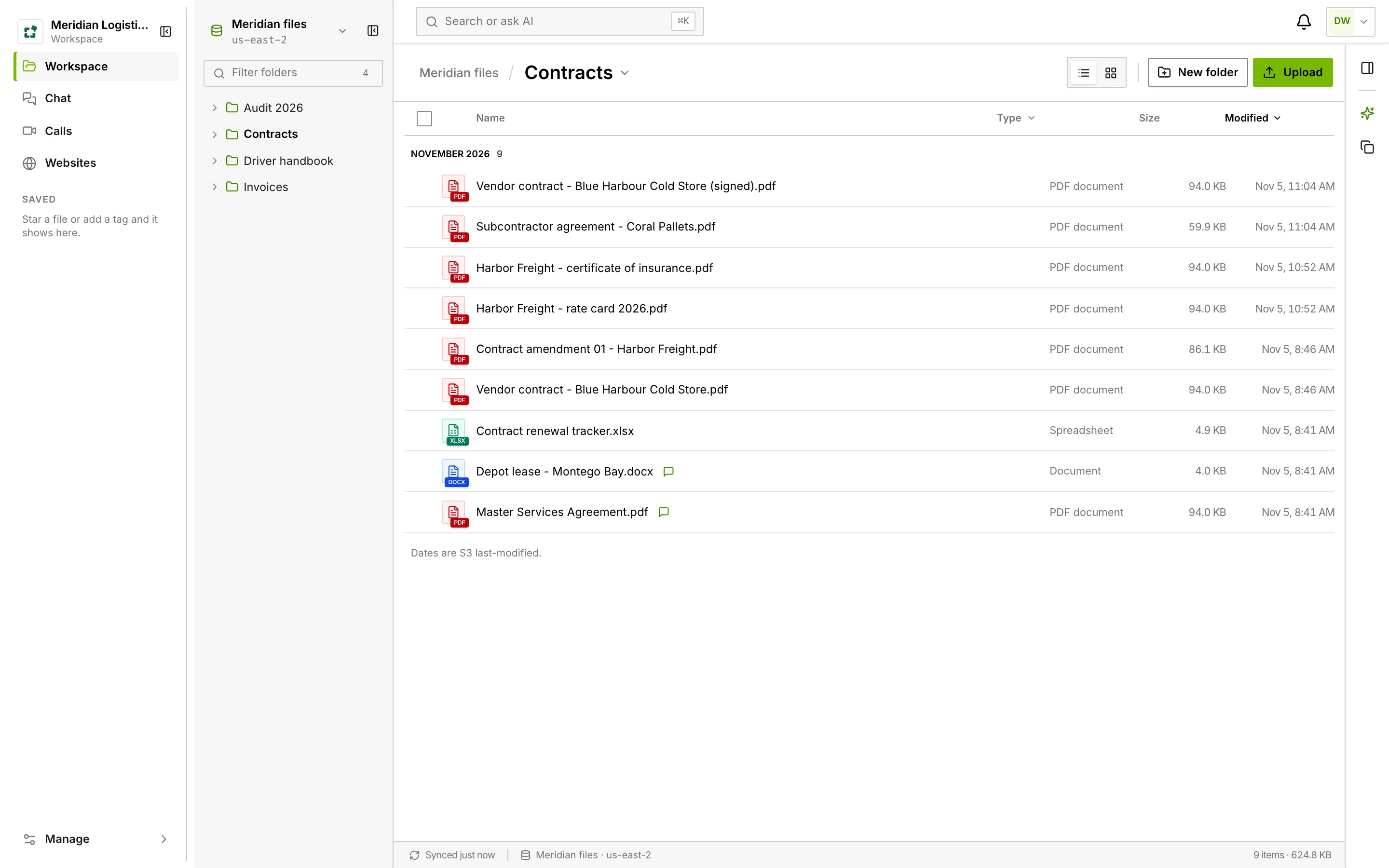
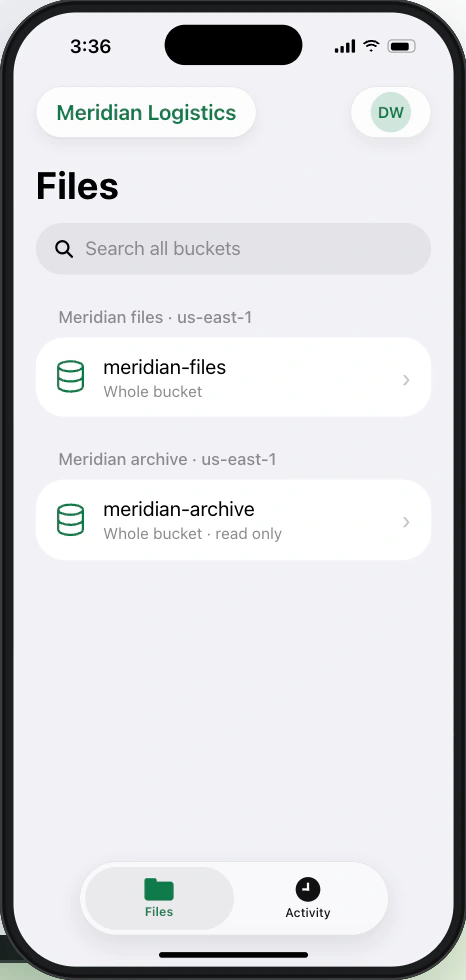
The team’s bucket workspace
Folders and files from a connected S3 bucket, with previews, search and share links. Nothing to install.
Nothing moves
Your files stay in your bucket.
- Create the role
One CloudFormation stack in your AWS account, scoped to one bucket and folder.
- Invite your team
They sign in to BucketDesk by email and see only what you connected.
- Take it back any time
Delete the stack and access ends. Your CloudTrail records each session the role starts.
Questions
What people ask first.
- Where did our WorkDocs files go?
If an administrator ran the AWS data migration tool, they are in an S3 bucket in the same AWS account and region as the WorkDocs site, as one zip file per user. Data left on WorkDocs itself was deleted after the service ended.
- Can BucketDesk open the zip files?
Yes. Look inside a zip and extract it into a new folder next to it in your bucket. Unzipping is part of Standard and Ultra; Minimum includes a small monthly allowance to try it.
- Do our WorkDocs comments and sharing come across?
No. The export put each person’s comments and permissions in a CSV file inside their zip, and BucketDesk does not import it. The files and folders come across; new comments and shares start fresh.
- Does my team need AWS keys?
BucketDesk uses a role you create in your AWS account. Your team signs in by email.
- What do I need to get started?
An AWS administrator reviews and creates the connection role through CloudFormation, then connects a bucket or folder. Teammates can then join by email.
Give your team the bucket, and keep the keys.
One month of Ultra free. No card needed to start.