BucketDesk Sync for Mac puts your S3 folders in Finder
BucketDesk Sync is a Mac app that shows your BucketDesk folders in Finder and keeps chosen folders on your Mac in step with a bucket, with the same permissions, recycle bin and audit log as the browser.
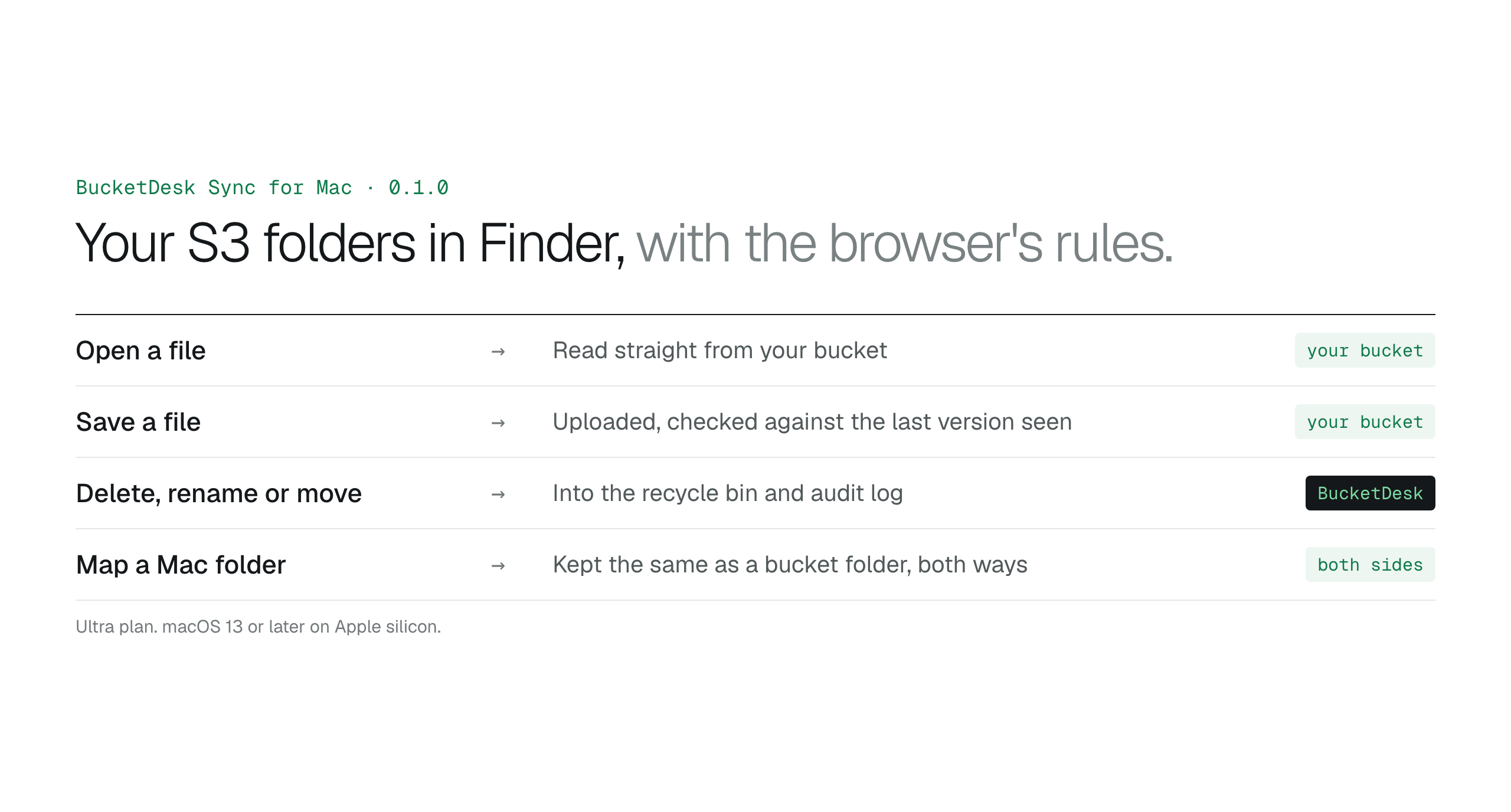
BucketDesk Sync for Mac puts your S3 folders in Finder and keeps chosen Mac folders in step with a bucket, while every change still goes through BucketDesk's permissions, recycle bin and audit log.
Most people don't want to open a browser to change one spreadsheet. They want the file where every other file is: in Finder, opened with a double click, saved with Command-S.
BucketDesk Sync for Mac does that for files in your own S3 buckets. The folders you can reach in BucketDesk show up in Finder, and any folder on your Mac can be paired with a folder in a bucket and kept the same both ways. Nothing moves out of your AWS account, and every change still goes through BucketDesk's permissions, recycle bin and audit log.
Your bucket folders in Finder
After you sign in, each BucketDesk folder you can reach appears in Finder's sidebar under Locations. Files show as placeholders, so a folder with thousands of files takes no space until someone opens one. Opening a file downloads it. "Keep on this device" keeps a copy for working offline, and edits made offline go up when the Mac is back online.
Saving a file sends it back to the bucket. If someone else changed the same file in the meantime, BucketDesk keeps both: their version stays as the file, and yours is saved beside it as "name (conflict from your Mac and the date)". Nothing is silently overwritten.
Folder maps: a Mac folder that stays in step with a bucket
Some folders already have a home on the Mac, like Downloads, Screenshots or a project folder. In Settings you can pair one of them with a folder in a bucket, and the two are kept the same both ways: add, change or delete a file on either side and the other side follows. Changes on the Mac reach the bucket within seconds, and changes in the bucket reach the Mac within a minute.
Two safety stops protect the files. If the bucket folder is renamed, moved or emptied elsewhere, the map stops instead of emptying the folder on your Mac. If the Mac folder is on a drive that gets unplugged, the map stops instead of deleting the bucket's copies.
The same rules as the browser
The Mac app doesn't get its own keys to your bucket. Signing in through BucketDesk gives the Mac a sync-only token, visible and revocable in Settings under API tokens. Every hour it asks BucketDesk for fresh AWS keys narrowed to the folder being synced, and those keys can't delete anything.
Deletes, renames and moves go through BucketDesk instead, so they land in the recycle bin and the audit log exactly as they would from the browser. A file deleted from Finder by mistake can be restored like any other.
| What happens | Where it goes |
|---|---|
| Open a file | Read straight from your bucket |
| Save a file | Uploaded to your bucket, checked against the last version seen |
| Delete, rename or move | Through BucketDesk, into the recycle bin and audit log |
| Sign out the Mac | Revoke its token in Settings, API tokens |
Download BucketDesk Sync for Mac
BucketDesk Sync is part of the Ultra plan. Download the app, sign in with your BucketDesk account and choose which folders appear in Finder.
- Download
Unzip the file and drag BucketDesk Sync into Applications.
- Sign in
BucketDesk opens in your browser to approve the Mac.
- Choose folders
Tick the folders you want in Finder, or map a Mac folder in Settings.
Release notes for 0.1.1 ↗Plans and pricing
Version 0.1.1 needs macOS 13 Ventura or later on a Mac with Apple silicon (M1 or newer). The app is signed and notarized by Apple. Windows is on the way.
Primary sources
Discussion
0 comments · open to guests · moderatedLiked this? Get the next article by email. No schedule, no digest, one click to leave.