 BucketDesk
Choosing an S3 Viewer for Secure Business File Access
How to choose an S3 viewer for business teams: keyless role connections, in-browser previews, expiring share links and Document AI.
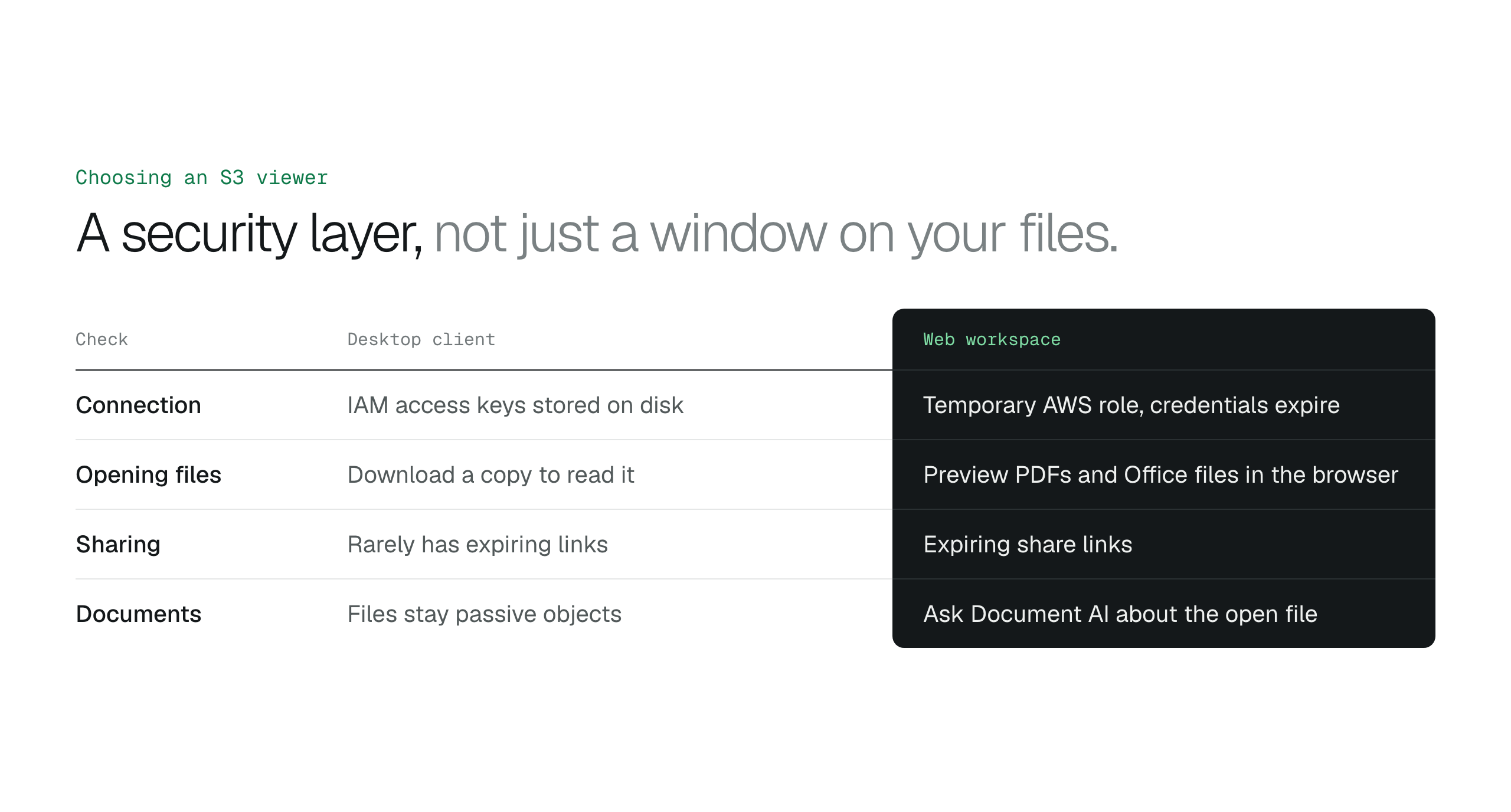
Choose an S3 viewer that connects through a temporary AWS role instead of stored access keys, previews files in the browser instead of downloading them, shares through expiring links and answers questions about each document. Desktop clients suit individual developers; a web workspace suits business teams that need central access control and audit logging.
Business teams need to open files in Amazon S3 without the AWS Management Console, the command line or a stored secret key. An S3 viewer solves this: it is a graphical interface that shows S3 objects as files and folders, so non-technical staff can find, preview and share them.
The S3 viewer is also part of your security infrastructure, because it decides how credentials are handled and whether files end up cached on local machines. Choose one that connects through a temporary AWS role instead of IAM access keys, previews Office and PDF files in the browser instead of downloading them, shares files through expiring links, and answers questions about each document with Document AI. This guide compares desktop clients and web workspaces against those four requirements.
An S3 viewer bridges the gap between raw storage and usable files
An S3 viewer lets you manage cloud files through a graphical interface instead of programmatic commands. Amazon S3 stores objects in a flat structure, and the viewer shows that structure as the folders and files people use daily. Staff can organize data without writing code or navigating the AWS Management Console.
An S3 viewer sends authenticated requests to the AWS S3 API on your behalf. When you open a folder, the viewer fetches the contents of that prefix and its metadata, including file size, last modified date and storage class. A command-line interface (CLI) requires precise syntax; the viewer turns clicks and drag-and-drop actions into the same API calls and handles authentication headers and request signing in the background.
AWS offers its own component, Storage Browser for Amazon S3, and third-party viewers add previews, sharing and permissions on top of plain browsing. Compare the two before you pick one for your organization.
When to use Storage Browser for Amazon S3How to access Amazon S3 files without the AWS console
Connection methods determine your long-term security posture
An S3 viewer connects to your account in one of two ways: static IAM access keys or AWS role assumption. Traditional file transfer clients use static keys. You generate a long-lived Access Key ID and Secret Access Key in the AWS Management Console and paste them into the application, which stores the secret in a configuration file on the local machine. If malware or theft compromises that device, the attacker keeps access to your S3 buckets until an administrator finds the breach and rotates the keys.
BucketDesk uses the keyless approach: AWS role assumption. Its servers request temporary credentials from the AWS Security Token Service (STS) that expire after 15 minutes, and the browser only receives signed file links that expire within minutes. A compromised workstation holds no AWS key, which limits the window for unauthorized data exfiltration.
Role-based access also simplifies offboarding. When a team member changes roles or leaves, you remove them from the viewer's workspace, or from your Single Sign-On (SSO) provider if the viewer supports one, and access ends on every device at once. Central revocation removes the credential sprawl that builds up when dozens of employees keep permanent keys in third-party applications.
Role assumption moves security from individual key hygiene to the infrastructure, where it can be audited. Every file request is tied to a verifiable, temporary identity, which is a foundational step toward a Zero Trust architecture.
Connect customer AWS accounts without collecting access keys
- Credential lifespan: static keys are permanent until rotated; role credentials expire on their own.
- Local storage: static keys sit on disk; role assumption stores no permanent secret locally.
- Revocation: static keys are deactivated one by one; role access is revoked centrally in the viewer, IAM or SSO.
- Compromise risk: a leaked static key stays valid; a leaked session token expires.
- Setup: static keys are copied and pasted; role assumption uses identity-based authorization.
Native previews solve the friction of constant downloads
Choose an S3 viewer that renders files in the interface, not one that only lists download links. When a professional downloads a file to read it, the file leaves the S3 bucket's security perimeter and becomes one more unmanaged copy on a local hard drive. A professional viewer renders files through server-side processing or a browser view, so nobody saves a copy to the Downloads folder.
In-interface rendering also helps with compliance. Compliance officers often require sensitive data to stay in specific regions or controlled environments, and a document downloaded for a quick audit is outside the managed cloud environment. Ask where the viewer renders Office files, because some viewers send them to a third-party service to draw the preview.
Previews also speed up high-volume work. Business teams scan dozens of PDFs, spreadsheets and Office documents to find one piece of information, and waiting for each download to open in a separate application slows invoice checks and legal reviews. A purpose-built S3 file viewer lets staff move through files with a single click.
In-browser previews remove the forgotten-file problem. Old copies of sensitive documents pile up in Downloads folders and stay there long after the work is done. A preview opens in a browser tab instead of leaving a saved file behind.
How to preview files in Amazon S3 without downloading themS3 file viewer guide: which viewer to choose
Desktop clients serve developers while web workspaces serve teams
Desktop clients suit individual developers who need direct, low-level control over objects. Many are open-source or tied to one operating system, and they put technical efficiency ahead of collaboration. Desktop clients run on one machine, which puts a barrier between the data and the team that needs controlled access to it.
OS-specific desktop clients create friction for teams that work across different hardware. Basic desktop explorers rarely include expiring links for external stakeholders, and they have no Document AI, so files stay passive objects instead of searchable assets. Teams then download and re-upload files to other services for everyday tasks, which increases the risk of data leakage.
Web workspaces fix this with one browser-based interface on any device. A desktop client needs an installation and stored credentials on every machine; a web workspace centralizes access control and audit logging. Centralized workspaces support metadata extraction and granular sharing permissions that desktop clients do not.
S3 file browser options compared, from the AWS console to CyberduckWhat is S3 Browser?
Document AI transforms passive storage into active knowledge
Modern S3 viewers use large language models (LLMs) to read the content of stored objects, not only their names. You open a document, ask a question in plain language, and get an answer with a citation that highlights the supporting passage.
Document AI turns the S3 viewer from a file-name browser into a tool for extracting information. You can ask whether a contract contains a specific term or summarize the milestones in a project plan, and the answer comes from the file in your private cloud storage. Your S3 bucket stays the source of truth.
In BucketDesk, Document AI is part of the Ultra plan. The Minimum plan browses and searches one bucket, and the Standard plan shares files from all your buckets.
Enterprise teams separate storage from access
A dedicated S3 viewer gives non-technical staff access to large datasets without the AWS Management Console. The standard pattern separates the storage layer from the access layer: data stays in secure buckets, and the viewer gives account managers, support staff and operations teams a browsing experience like a local file explorer. Departments get the files they need for daily decisions, and the security rules stay in AWS.
Media and production teams use the same pattern to manage high-definition assets across distributed teams, with interfaces that handle deep folder hierarchies and strict naming conventions. Whatever the use case, choose a viewer that respects fine-grained AWS Identity and Access Management (IAM) policies, so the graphical interface never weakens your AWS security.
Advanced lifecycle operations require specialized UI controls
Choose an S3 viewer that shows archived files and lets users request restores. Basic viewers show only objects that are available for immediate download. Businesses move older data to S3 Glacier Flexible Retrieval or S3 Glacier Deep Archive to cut storage costs, and without dedicated controls those archived files look missing to non-technical users, so an AWS administrator has to retrieve each one by hand.
A viewer with lifecycle controls lets data managers start a restore without leaving the file browser. They pick expedited, standard or bulk retrieval based on urgency and retrieval fees (Deep Archive offers standard and bulk), and the viewer shows the job's status and when the file will be ready. Putting the retrieval choice in the interface shows users the cost of their actions and keeps spending visible.
Lifecycle controls keep transitions to cheaper storage tiers and the expiry of old object versions visible to the people who use the files. Your storage strategy scales without adding work for your engineering team.
How to restore files from S3 Glacier Flexible Retrieval and Deep Archive
Can I view S3 files without downloading them first?
Yes. An S3 viewer with native previews renders PDFs, images and Office documents inside the application without saving a file to your device. Native previews keep sensitive files out of employees' Downloads folders.
Is an S3 viewer more secure than the AWS Management Console?
Yes, for non-administrative staff. The AWS Management Console allows high-risk infrastructure changes, while an S3 viewer limits users to file operations such as reading and uploading objects through scoped IAM roles. Limiting the interface to file operations prevents accidental bucket deletions and configuration errors that expose data.
How do I give non-technical staff access to S3 buckets?
Give non-technical staff a web-based S3 viewer with its own sign-in, or one that connects to your Single Sign-On (SSO) provider, and limit it to the buckets and folders they need. Staff see a folder tree instead of the AWS console. Nobody handles secret access keys or navigates the AWS ecosystem.
Are there free S3 viewers for Windows users?
Yes. Open-source desktop clients such as Cyberduck give Windows users free drag-and-drop access to S3 for individual work. Free desktop clients do not include centralized management or audit logging.
Can I search inside PDF documents stored in an S3 bucket?
Yes, if your S3 viewer includes an indexing engine or Document AI. The S3 console search box matches only the start of object names (the prefix); a viewer with Document AI reads the text inside the PDF you open and answers questions with a citation to the supporting passage.
How to choose your organization's S3 viewer
An S3 viewer is the step from unmanaged cloud storage to a governed data environment. Run these five checks before you commit to a platform.
- Access requirements: map which departments need write access and which need read-only access.
- Preview needs: list the document and media formats your team must open in the browser instead of downloading.
- Security: confirm the viewer connects through your existing IAM roles or SSO provider.
- Scale: test the interface on your largest buckets to confirm it stays responsive across millions of objects.
- Automation: decide whether your workflow needs Document AI to answer questions about the documents your team opens.
Give your team a secure S3 viewer with BucketDesk
BucketDesk is a web-based S3 viewer for business teams. It connects to your own S3 buckets through a temporary AWS role, and your files stay in your AWS account.
- Connect
link your bucket through an AWS role instead of pasting access keys.
- Preview
open PDFs, Office files and images in the browser without downloading them.
- Share and ask
send expiring share links, and ask Document AI about a document on the Ultra plan.
Secure file sharing for business: what to check before you send the link
Discussion
0 comments · open to guests · moderatedLiked this? Get the next article by email. No schedule, no digest, one click to leave.